
GitHub: Terra Incognita
Running notebook: Investigation progress
- Getting hold of the data
In the previous chapter, we looked for a way to obtain our Garmin data in a format that is immediately suitable for analysis.
Directly working with Garmin’s export quickly proved unsatisfactory. I would have had to spend several hours writing code just to extract and reorganise the data.
That is not the problem I’m interested in solving.
Instead, I found a good-looking, open-access Python package on
GitHub called GarminDB.
Today, we will learn how to safely use tools like this one.
GitHub: Terra Incognita
GitHub is one of the most largest collections of open-source software ever assembled. Whatever problem you are trying to solve, there is a good chance that someone has already built a tool to help you.
However, and before we go any further, I want to acknowledge something.
If seeing the word GitHub made you shiver for a split second, you are not alone. I’ve been there too.
The challenge is that GitHub wasn’t designed for beginners. You get to see everything that’s usually hidden under the hood: code, configuration files, technical documentation, and unfamiliar terminology. It’s easy to feel lost.
For anyone without much experience in computer science, it can feel like a terra incognita: full of promises, but also intimidating. Which files matter? Where do you start? How do you know whether a project is trustworthy?
Luckily, you don’t need to understand everything to use what’s offered to you.
In this chapter, I will show you I explore a GitHub repository (or “repo”) to understand what a tool can actually do, and try it safely without compromising anything on my computer.
As usual, I will only introduce tools that you can reuse in other projects.
GarminDB: What does it do? How does it work?
When you open a GitHub repository for the first time, you see information everywhere. Not all of it is useful to you, though. If you are simply trying to use the tool, you can safely ignore most of the first section containing the list of files and folders 👇.
At least for now, since we are still in the early stages of the investigation.
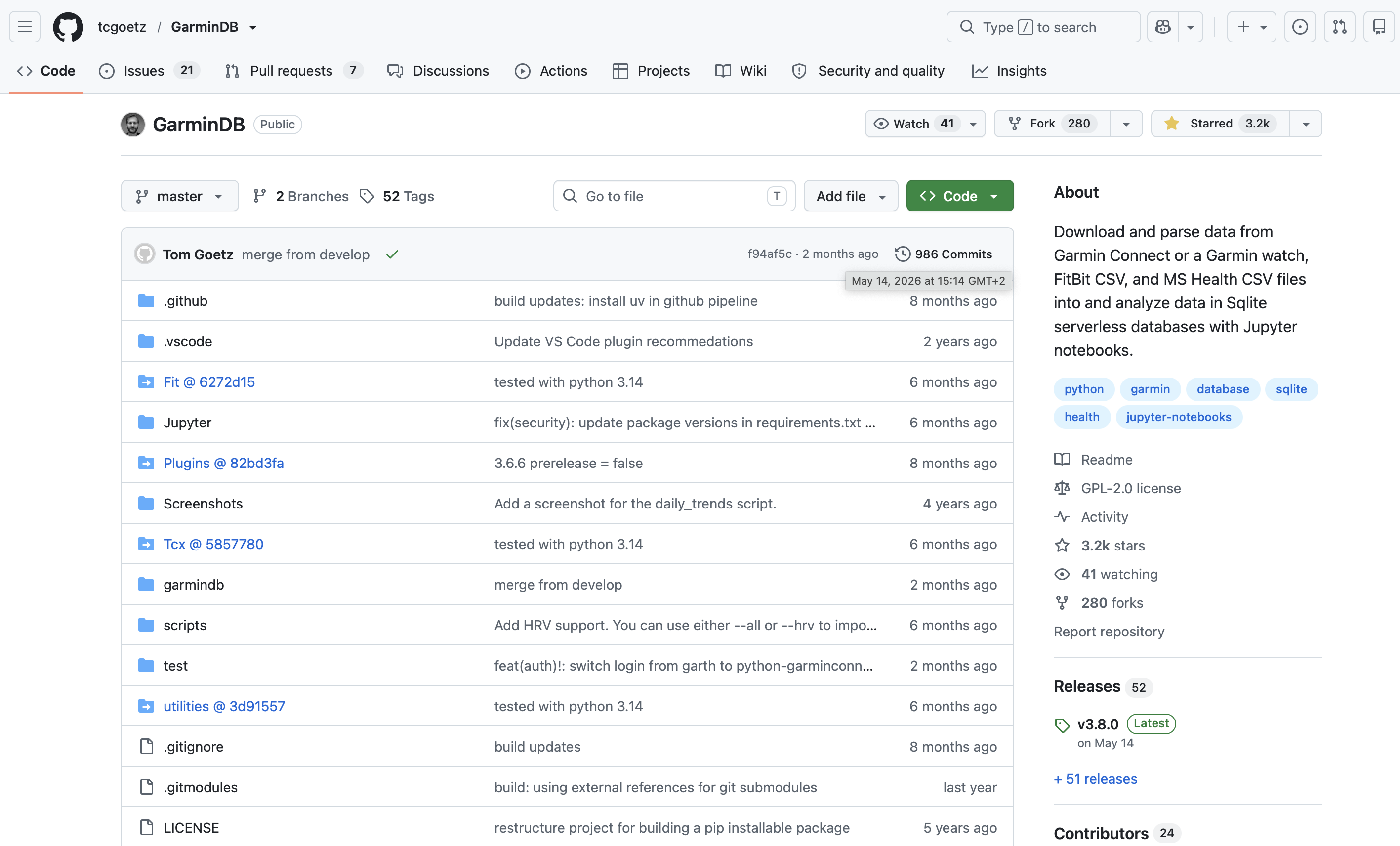
Most well-maintained repositories include a README, which explains what the project does, how to install it, and how to use it. You can usually find it immediately below the table of files and folders, and that’s where I always start.
What does GarminDB do?
The README of GarminDB starts with a collection of screenshots. That’s
slightly unusual, but we don’t really care. We keep scrolling until we
reach the section that explains what the project actually is.
Under the heading GarminDB, we find the following description:
Python scripts for parsing health data into and
manipulating data in a SQLite database. SQLite is
a lightweight database that doesn't require a server.
So what does that mean in plain English?
The tool promises to:
- automatically extract (“parse”) the data from garmin.com;
- organise them into a well-structured
SQLitedatabase instead of leaving us with hundreds ofJSONfiles like we saw in the previous chapter.
That’s exactly what I was hoping to find.
If GarminDB delivers on that promise, it will download the data from Garmin, curate them into tidy tables, and spare me from writing all that extraction code myself. Win, win, and win.
Conclusion: GarminDB appears to solve the right problems, so it passes the first test.
Now we need to understand how we can safely use it.
How can we use GarminDB?
We keep scrolling until we reach the “Using it” section. That’s exactly what we were looking for.
Most repositories usually offer two installation options: one involves using a pre-built version of the tool (“Releases” section in this case), and another installing the tool “from Source”.
Unless you have a good reason not to, always start with the pre-built version. It is simpler and usually all you need.
In this case, GarminDB is distributed through PyPI, the standard
repository for Python packages. That’s great news because installing it
becomes very straightforward.
But before you copy and paste the following command, I want you to read
one more section. We will first create a Virtual Environment so we can
experiment without affecting anything else on the computer.
So I’m explaining the process, but we are not executing anything yet.
pip install garmindb
The terminal will start printing a lot of messages. That is expected and it is simply logging everything regarding the download and installation of packages needed by GarminDB.
If you get an error like:
command not found: pipyou will first need to install pip on your computer. Since it is the standard tool for installing Python packages, you will almost certainly use it again. So don’t overthink it, and install it. The official website explains how to do it.
Once the installation finishes successfully, we will be ready to download our data. But first, we need to make sure we are doing it safely.
Developing good habits
A good reflex when using such tools: Virtual Environments
If you’ve never installed software from GitHub before, this is probably the moment where you start wondering: What if I mess up my computer?
It’s a reasonable concern. Many tools depend on other packages, and some depend on very specific versions of those packages. Installing a new tool may therefore replace packages that another project relies on. Nobody wants that.
Fortunately, there is a simple solution: virtual environments.
A virtual environment is an isolated workspace for a project. Anything you install inside it stays inside it. If you decide you no longer need the project, you simply delete the virtual environment and everything disappears with it.
In other words, you can experiment freely without worrying about interfering with other Python projects or the rest of your computer.
As a bonus, virtual environments also make collaboration much easier. Every member of a project can work in exactly the same software environment, regardless of what they have installed for other projects.
Once you get into the habit of creating a virtual environment at the beginning of a new project, it quickly becomes second nature. It’s one of those small habits that saves a surprising amount of trouble later. If you only keep one thing from this post, make it this!
Several tools exist to manage virtual environments. I personally use
uv because it’s simple and handles both virtual environments and
package installation. You can find the installation instructions
here and a
complete overview of its features
here.
⬇️ From here onwards, you can start executing command lines. ⬇️
In your terminal, navigate to the folder of your analysis and type:
cd path/to/my-analysis-folder // Replace by your folder path
uv venv
That’s it. You have created a virtual environment.
From now on, whenever you want to work on this project, open a terminal
in the project’s folder and run your Python commands through uv:
uv pip install garmindb
GarminDB is now installed inside this virtual environment and only there. Other Python projects on your computer won’t see it, and changes made here won’t interfere with them.
If you want to get rid of everything, you can simply delete the
.venvfolder. GarminDB and everything else it installed for this project disappear with it without leaving traces.
Controlling where data are stored
When you install GarminDB, it creates a hidden folder called .GarminDb
in your home directory. Inside, you’ll find a configuration file named
GarminConnectConfig.json.
The GitHub README provides a
template
that you can copy into GarminConnectConfig.json as a starting point.
{
    "db": { ... },
    "garmin": { ... },
    "credentials": {
        "user"                          : "manuel.chevalier@datasharpacademy.com",
        "secure_password"               : false,
        "password"                      : "my_password",
        "password_file"                 : null
    },
    "data": {
        "weight_start_date"             : "12/31/2019",
        "sleep_start_date"              : "12/31/2019",
        "rhr_start_date"                : "12/31/2019",
        "hrv_start_date"                : "12/31/2019",
        "monitoring_start_date"         : "12/31/2019",
        "download_latest_activities"    : 25,
        "download_all_activities"       : 20
    },
    "directories": {
        "relative_to_home"              : true,
        "base_dir"                      : "DataSharp/enter-the-mind/running",
        "mount_dir"                     : "/Volumes/GARMIN"
    },
    "enabled_stats": { ... },
    "course_views": { ... },
    "modes": {
    },
    "activities": { ... },
    "settings": { ... },
    "checkup": { ... }
}
This file tells GarminDB what to download and where to store it. Most of
the options can safely be ignored, but there are a handful that are
worth configuring. - Your username and password; - The dates in the data
section (since when do you want data to be pulled from); - base_dir By
default, GarminDB creates a HealthData folder in your home directory. I
prefer to explicitly choose where project data live. Keeping every
project’s files together makes them much easier to find, back up, and
eventually delete. So choose a location that makes sense for your
project.
The first time you run GarminDB, set download_all_activities to a small number such as 20. A short test run lets you verify that everything works before committing to downloading hundreds or thousands of activities.
Save the file and brace yourself. Take off is imminent.
Everything is ready, let’s go!
We now have everything we need. GarminDB is installed, our environment is isolated, and we have parameterised everything. We are finally ready to download the data.
cd Programs/garmindb
uv run garmindb_cli.py --all --download --import --analyze
Depending on the parameters, the first download can take a little while because GarminDB retrieves your complete history. So while your computer does the heavy lifting, go treat yourself.
Subsequent updates of the database are much faster. Simply add
--latest to the command line and GarminDB will only download what has
changed since the last time, and update all the databases accordingly.
cd Programs/garmindb
uv run garmindb_cli.py --all --download --import --analyze --latest
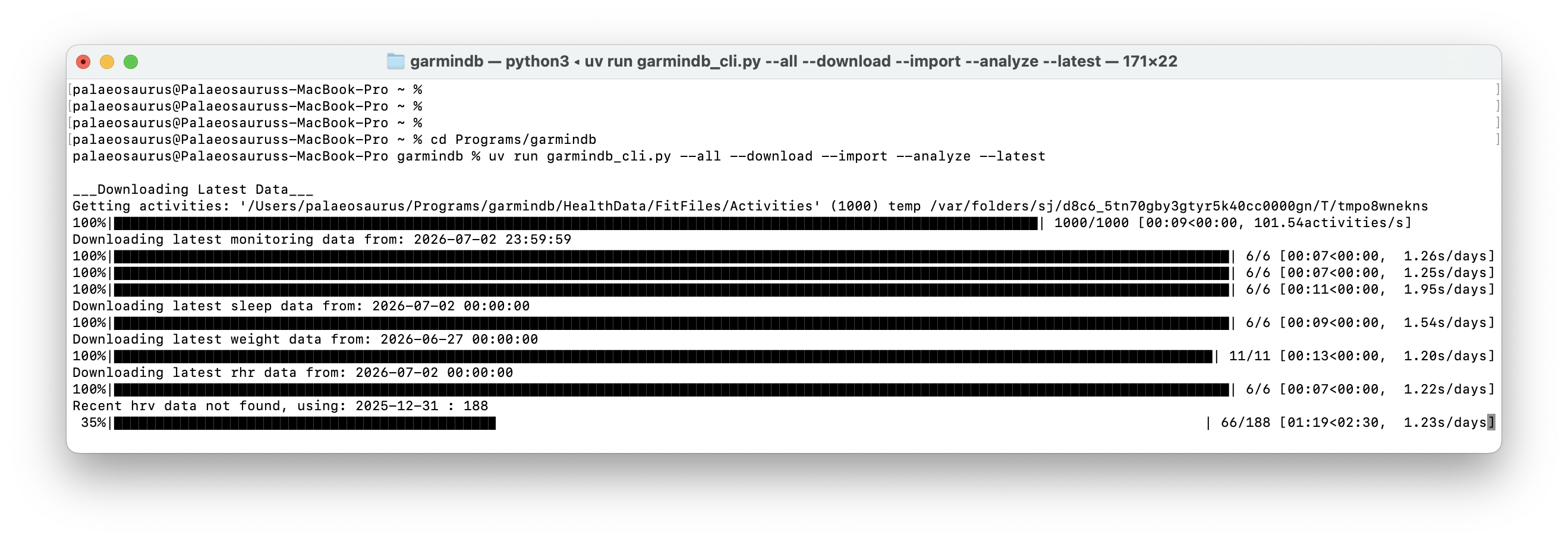
What a luxury open-source software can be.
What’s next
So here we are.
After venturing into GitHub’s terra incognita, we have safely
installed an open-source Python package, configured it, downloaded our
Garmin data, and transformed them into well-structured SQLite
databases ready for analysis.
All with just a few command lines.
And possibly one coffee break. ☕️
In the next chapter, we will open those SQLite databases, explore what relational databases actually are, and see why they make such a solid foundation for the rest of the project.